Before You Begin
Your profile needs to be live first. Until then, the Studio Share page shows a note instead of your kit, and the toolkit can’t find your profile. If you aren’t published yet, see Create your profile.
1. Copy Your Profile Link
Your profile link looks like this: https://creators.militaryinfluencer.com/example-name/. It stays the same when you edit the profile. Use the Copy button in your Studio Share page or on your public toolkit page rather than typing it, and put it in your link-in-bio, email signature and speaker one-sheet.
2. Download the One-Pager
Every published profile has a printable one-pager with your headline, featured work, experience, expertise and partnership offerings, at your profile address plus one-pager/. Open your profile and select Download one-pager. It’s built for a media kit, a conference packet or a reply to a brand.
3. Use Your Kit in the Studio
- Sign in to the Creator Studio and open Share.
- Your card, caption and QR code are there once the profile is public. Copy the caption or write your own.
- Download the card in the sizes you post in. It uses your name, headline, expertise and photo, so there’s nothing to design.
Links in your Studio kit include your referral code. When someone joins through one, the team can see you helped the Index grow. The team only sees how many, never who.
4. Personalize a Graphic in the Toolkit
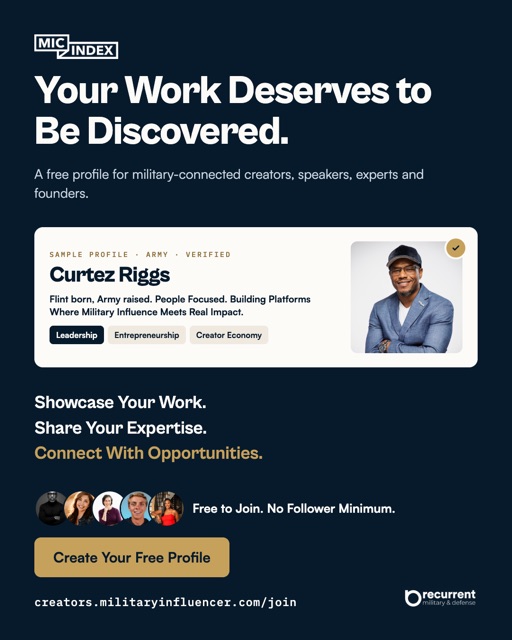
The public sharing toolkit has six messages, each in five sizes, for creators, supporters and partners.
- Fill in your name, role, tagline, expertise and profile slug (the name at the end of your profile link) on the right. The two personal graphics update as you type. Want a different photo? Upload a headshot. It’s used for the graphic and not saved.
- Under any graphic, pick a size: 9:16 for stories, 4:5 for feed, 1:1 for square posts, a link-preview size and 16:9 for slides.
5. Download and Post
Select Download PNG under the graphic. Every file is full resolution. The buttons pictured inside a graphic are part of the image and do nothing when tapped, so put your profile link in the caption. On a story, add the platform's link sticker.
At the top of the toolkit is the Beta Launch Kit: a feed graphic, a square, a story and a one-page explainer about the Index itself, with a caption you can copy. Use these when you want to tell people what the Index is rather than share your own page.
Sharing a Collection
If you’re in a collection, such as a branch page or Military Spouses, the Studio overview shows a Share the collection link. Collection graphics show you alongside the other creators in that group, which is useful when you want to point people at a theme or a community rather than only at yourself.
Invite Someone Who Belongs Here
The toolkit has an invite message for exactly this. Share it with a creator who isn’t listed yet and send them to Join the Index. There’s no referral fee, and you can invite as many people as you like.
What Success Looks Like
Your profile link is in your bio and signature, the one-pager is in your media kit, and you’ve posted at least one graphic with the caption. People who follow you can find the Index page in one tap.
Common Problems
- The toolkit says it couldn’t render. The name at the end of your profile link has to belong to a live profile. Copy it from your profile address without the slashes.
- The buttons in the graphic do nothing. They are part of the image. Put your link in the caption or, on a story, add the platform's link sticker.
- You want a different photo. Upload a headshot in the toolkit form. It’s rendered into the graphic and not stored.
Questions People Ask
What’s my profile address?
Published profiles sit at the site root, for example https://creators.militaryinfluencer.com/example-name/. Copy it from the Copy button on the Studio Share page or from your browser rather than typing it.
Do the share links track who clicks them?
Links in your Studio kit carry your referral code. When someone joins the Index through one, the team can see that the Index grew because of you. It records counts only, never who.
Where does the toolkit get my details?
The personal graphics use what you type in the toolkit form: name, role, tagline and expertise. With a published profile slug they also use that profile’s photo, or a headshot you upload, which is rendered and not stored.
Can I share a collection I am in?
Yes. The Studio overview shows a Share the collection link when you appear in one, and the toolkit has collection graphics that put you alongside the other creators in that group.
Related Guides
- Build a Profile That Shows Your Value: Write a headline, bio, and offerings that show what you do best, with before-and-after examples.
- Get Verified: What the badge means, the four checks it takes, and how to request a review.
- Update a Published Profile: How to change a live profile, and what happens while your changes are reviewed.
Found a step that no longer matches the product? Report an outdated step and the team will re-check it.